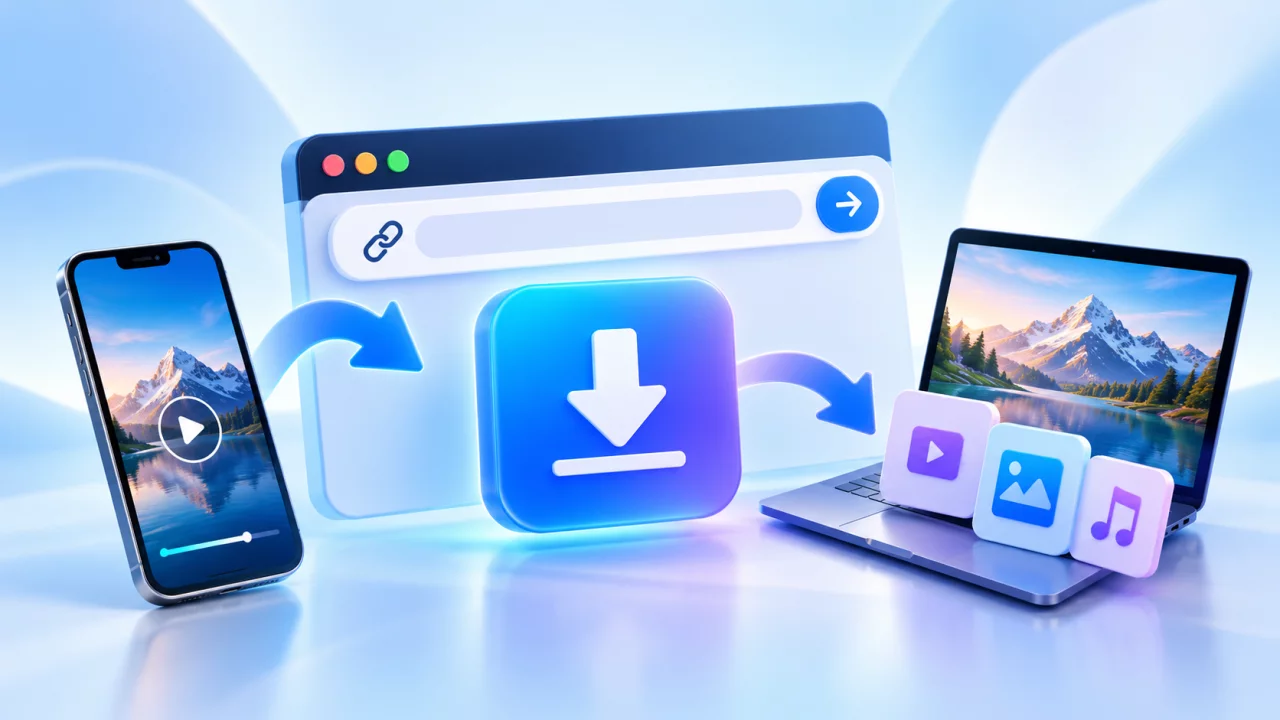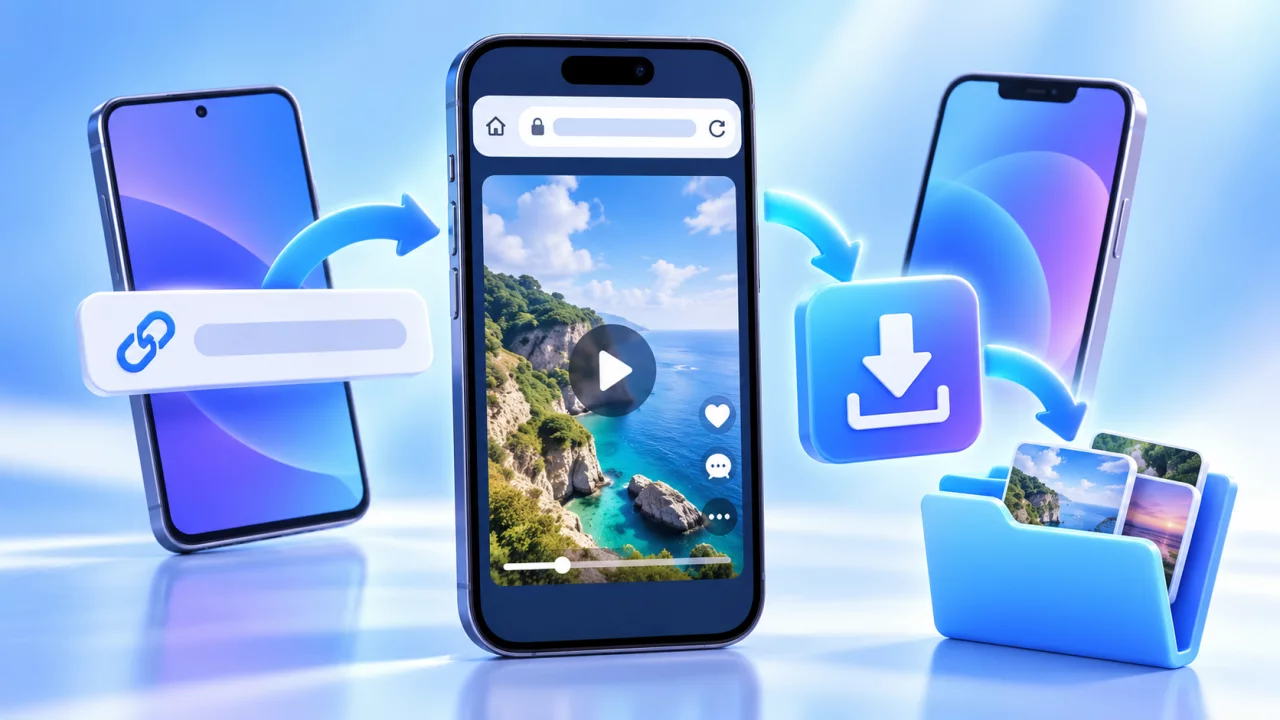
A mobile SaveFrom video downloader workflow should be simple: copy one public media link, paste it into a browser tool, compare the returned options and save an authorized file. Android and iPhone handle downloaded files differently, so knowing where the browser stores them prevents the most common confusion.
How to download a public video on mobile
- Open the individual public video in its platform app or mobile browser.
- Tap Share and choose Copy link.
- Open Save-Froms.net in your browser and paste the complete URL.
- Review the MP4, WEBM or audio choices returned for the source.
- Tap Download once and wait for the browser transfer to finish.
Android download steps
Chrome and other Android browsers normally save the file in the Downloads folder. You can monitor progress from the browser menu or notification shade. When the transfer finishes, open Files, My Files or your device's file manager. A video may also appear in the gallery after Android scans it.
If the media opens in a new tab instead of downloading, use the browser menu and choose Download. If Android asks for storage access, approve it only for the browser you trust. Repeatedly pressing the button can create duplicate partial files, so wait for the first request.
iPhone and iPad download steps
Safari places downloaded files in the Files app. The exact location is controlled by Settings > Safari > Downloads and may be iCloud Drive or On My iPhone. Tap Safari's download indicator to view progress. After the MP4 finishes, open Files and preview it.
To place an authorized video in Photos, open the completed file, tap Share and select Save Video when that option is available. A partial or unsupported file may not show the Photos action, so confirm the download is complete first.
Choose a quality that fits mobile use
| Quality | Good for | Mobile consideration |
|---|---|---|
| 360p or 480p | Quick references and messaging | Lower data and storage use |
| 720p | Everyday phone viewing | Often a useful balance |
| 1080p | Large screens or editing your own media | More storage and a longer transfer |
The source determines which resolutions appear. Compare the estimated sizes shown on the result instead of assuming that every video has the same 720p or 1080p file size.
Copy the correct public link
Use one item rather than a profile or feed. The YouTube downloader expects a watch, Shorts or youtu.be URL. The Instagram guide explains individual Reel and post links. TikTok should point to one public post, while Facebook and X links should open one public video without requiring your signed-in account.
To test visibility, paste the URL into a private browser tab. If the page asks for an account, membership, age confirmation or private access, a public downloader should not bypass it.
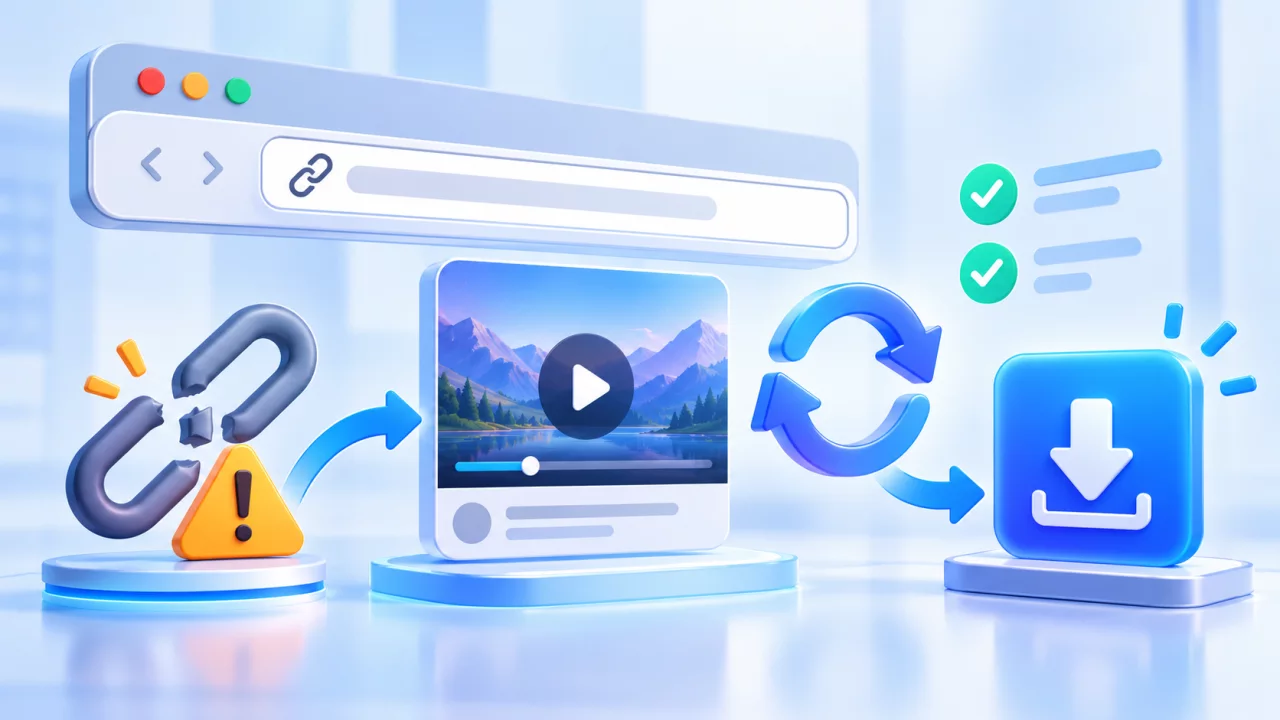
Why nothing happens after tapping Download
- The browser blocked automatic downloads or pop-ups.
- The temporary prepared URL expired before it was used.
- The phone has insufficient free storage.
- A content blocker hid or interrupted the download request.
- The selected format is temporarily unavailable.
Request a fresh result, try another returned quality and check the browser's Downloads area. Avoid installing unknown applications from pop-ups; the Save-Froms browser workflow does not require an account or app.
Mobile data, Wi-Fi and storage tips
Large HD files can consume substantial mobile data. Use Wi-Fi for long or high-resolution media, keep the screen awake until a large transfer has started and leave a storage margin beyond the displayed size. A browser may need temporary space while assembling the file.
Responsible mobile downloading
A public page is viewable, but that does not automatically grant reuse rights. Download your own uploads, client-approved assets, public-domain media or content whose owner has clearly allowed saving. Do not use a downloader to bypass privacy controls, remove attribution or republish a creator's work without consent.